Seems the latest version of After Effects from Adobe (CS4) has changed the PAL D1/DV Widescreen square pixel preset.
In CS3, compositions using that preset would be set to 1024 x 576 pixels. The new version (CS4) uses 1050 x 576.
So which is right? 1024 or 1050?
Well, to begin with, it’s all a bit complicated. I can still remember when it was first explained to me many years ago when I was still at the BBC, and it’s the kind of thing that’s quite difficult to get your head around without drawing little pictures on the back of envelopes. Anyway, there’s a few resources out there that try to explain this (links included below) – but I thought I’d have a go myself.
Oh, and before we get too bogged down, I’m talking about standard definition PAL here. The following explanation assumes 576 visible TV lines (out of the total of 625). So when I talk about aspect ratios and pixel dimensions the vertical height is always 576 regardless.
OK, here we go.
TV pixels aren’t square
A square pixel device (like a computer) would need an image to be 768×576 to maintain a 4×3 aspect ratio.
But TV pixels are rectangular – instead of 1×1, they’re more like 1×1.094.
So if we rewind a bit to the old analogue days – you can see from the diagram below that our TV set with its wider pixels is effectively only 702 pixels across.
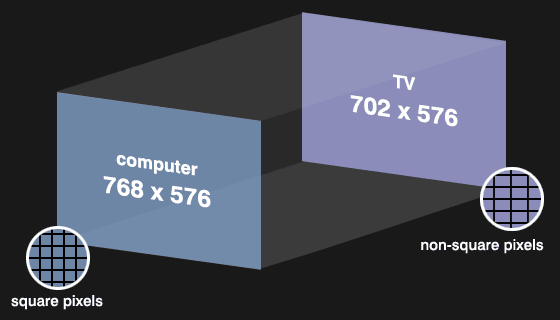
television pixels aren't square
Here’s the crucial part – digital TV pictures are wider
The key to all this to remember that digital TV pictures are wider than analogue.
Digital TV pictures are 720 pixels wide.
But the 4×3 image (702 pixels wide) sits inside those 720 pixels.
There’s an extra 9 pixels each side.
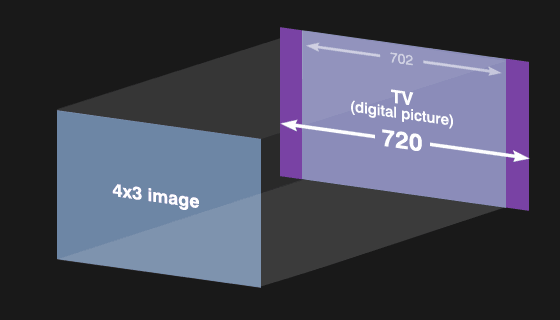
digital TV pictures are wider than analogue – the 4×3 bit sits inside
The ‘BBC guide to picture sizes’ (which used to be at www.bbc.co.uk/commissioning/tvbranding/picturesize.shtml but now seems to have been removed) said that these extra pixels are ‘required for digital processing’.
But, they might show up as black strips each side if the whole image is shrunk down via a DVE, or maybe these days if you are running your video in a window on a computer screen. I know that converting a 1024-wide movie from a Quicktime .mov to .mp4 format using Mpeg Streamclip does introduce black lines each side. Or at least it did for me the other day.
So if you’ve ever wondered ‘Why has my video got black strips each side?’ – this is probably why.
The reason for making your original After Effects composition wider is to guarantee that the whole image is filled with picture information. This will avoid either getting black lines each side, or having the application stretch the source material to fit, ending up with an image that’s ever so slightly distorted.
Adjustment for 4×3 compositions
For a 4×3 image that means your computer (square pixel) version would need to be 788 pixels wide.
Notice we now have allowed 10 extra (square) pixels each side on our source image. These equate to the 9 pixels (non-square) TV pixels we need.
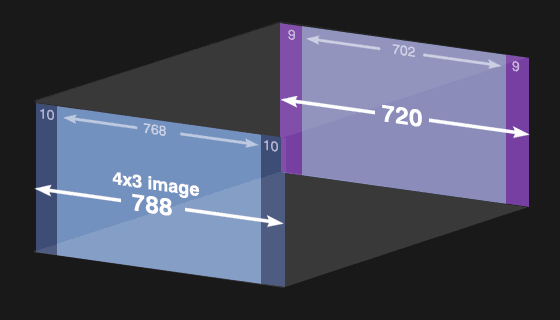
To fill the entire (4×3) image area, build at 788 pixels wide
And the same is true for 16×9 widescreen images too.
16×9 widescreen adjustment
Remember that your original 16×9 image (1024×576 pixels) is only going to occupy the middle part of the TV screen. You still need to account for those extra pixels each side. Again, taking into account that the TV pixels aren’t square, this time we’ll need 13 (square) pixels on our source material to fill in the missing areas.
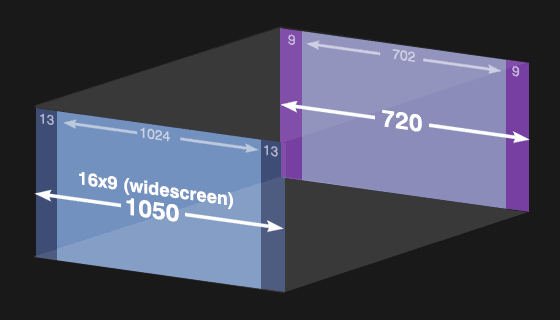
Widescreen composition should be 1050 pixels wide
So your original (square pixel) After Effects compostion needs to be 1024+13+13 pixels wide. Namely, 1050×576 to guarantee that it maps correctly on to the 720×576 digital output.
I don’t know whether Adobe, or makers of other applications were doing something clever behind the scenes to compensate in AE CS3 for 1024px projects to eliminate black edges. I suspect that what was really happening is that the end results when viewed on a real TV were just stretched very slightly, or any missing picture was hidden by overscan.
Anyway, it looks like Adobe have decided to use 1050 from now on.
And to be fair, nearly everyone I knew at the BBC was working to 1024. A few geeky designers like me tried to keep the 1050 flag flying, but as you can see, it’s not really the sort of thing anyone wants to keep explaining, especially if (like me) you don’t really understand it all in the first place.
Anyway. I hope that’s helped.
But, one last thing. I can remember MANY years ago doing a test at the BBC. I prepared two Photoshop images, each with a perfect circle in the centre of the screen. One was 1024 wide, the other 1050 wide. I scaled them both to 720 and laid them both off digitally and viewed them both on our broadcast-quality monitors. The 1050 one looked perfect, and the 1024 one looked very slightly distorted. Which is why I used 1050 for the BBC Weather animations a few years ago which featured a big glass circle fairly prominently.
Please feel free to comment here if you have anything useful to add.
Much love,
Mike
55 Comments
This is a great post. I encourage you to leave a comment on the page of After Effects Help that you link to above, linking back to this post. If you do, it'll remind me to work the link into the main body of the document the next time that I update After Effects Help on the Web.
Thanks for this, if Adobe have decided to make this change then why has photoshop not been updated with the new aspect ratios – it makes it very confusing as designers are designing to one standard and AE editors to another – come on Adobe sort it out.
I've been doing it wrong all these years! Great explaination. It's seem that everyone is confussed about aspect ratios.
As 1050×576 isn't 16:9 and Photoshop CS4 presets are still 1024×576 from a design point of view do I need to think about the extra 26 pixels? It seems to me that it's just dead space that never gets seen?
After many years we used to use 768×576 (wide and standard) they "discover" and illuminate us! Adobe, please allow us to make our own presets especially with our own aspect ratio!
Thanks Mike.
One note: I believe that your diagram entitled "television pixels aren't square" is incorrect. Aren't non-square TV pixels longer on the vertical side? You have the pixels looking wider in your diagram.
A video frame looks a bit too wide when viewing it on a PC, but when viewing it on a TV it skinnies up, therefore it seems as though the TV pixel would be taller.
I'm no expert, so can you tell me if this is correct?
Thanks!
Jim
Jim,
Thanks for the comment.
Possibly a PAL vs NTSC thing? I have a hunch NTSC footage gets squashed/stretched the other way from PAL.
Just checked – Adobe give pixel aspect ratios of 0.91 for D1/DV NTSC and 1.09 for D1/DV PAL.
Might that be it?
Mike
That sounds like it'd be it! SO a PAL pixel is WIDE, whereas an NTSC pixel is TALL!
Learn something new every day…
Thanks!
Jim
Thanks for the explanation; the BBC "Commissioning – A Guide to Picture Size" web page also confirms that many of us have been doing it wrong for a long time.
But this begs the question – does this mean that the 1920×1080 square pixels for HDTV is also wrong by 18 pixels?
Jeff
It is a real shame that it is now so complicated, as 1050 x 576 square pixels does not have an aspect ration of 16:9 !
Boaz
Thanks for this post – very well explained. cheers, Axel
Very useful post, thank you.
I'm not sure my problem qualifies as a "square pixel". Once or twice a week I have 1, 2 or 3 black rectangles about 1" wide and 1 1/2" tall. I have a 37" 2 year old LCD Vizio TV. Any suggestions?
Hi Mike,
Thanks a lot for taking the time to explain this! I just switched to CS4 and the new sizes were driving me crazy to say the least. Now i know why wich will make me sleep a lot better.
So again thanks for this!!
Kind regards,
Eddie
NL
Hi Mike,
We just switched back from Adobe Premiere CS4 to Avid Media Composer again. When still working With Premiere, we worked with "1050" as it was compatible with After Effects CS4. (It all made sense when I first heard about it and now even more with your post…).
I'm curious though, how many other editing suites work with "1050"? I know Avid doesn't… Will it be an industry standard or does the flatscreen (HD) TV-market have anything to do with it? We Use PS CS4 and AE CS4 and Avid. I guess we just have to work with
"1024" again… What would you recommend?
Grtz,
Owen
Hi Owen,
I tend to build everything using 1050 now, but you're right, some editing suites really don't know what to make of it. (I came across the Avid issue while still at the BBC – but don't know of others of the top of my head).
I would hope 1050 becomes industry standard eventually as it does lead to the best (i.e. non-distorted) results.
My suggestion is still to build at 1050 in After Effects (and thus any Photoshop material also at 1050) – that way you still have the option of dropping the whole thing into a new 1024 comp before the final render. It's a bit of a cop out, but at least then if you need the extra pixels, you have them.
Or render at 1050 and use a quick After Effects comp to crop to 1024 only if the edit suite can't handle it.
Sorry, but that's the best I can suggest!
thanks for posting,
Mike
Thanks Mike,
This is the best and simplest explanation for aspect ratios I have ever read. And considering it's been confusing me for years it's just what I needed to read!
Great post,
This makes the 16×9 problems for me al lot better to understand. Also the fact that it is related to Adobe Premiere is very welcome.
From now on I will save my work for the web wit 1050 pixels.
Greetings from The Netherlands
Bas Timmermans
Hi Mike
I've been trying to work non-square-pixel thing out in the last couple years. Also because HD to SD up- and downscalers also render different results – some add black bars on the side of the SD picture, some just squeeze to fill. It seems everyone is doing something different. So I did some testing with both a 1024×576 and a 1050×576 graphic with a round circle. On almost all monitors the 1024×576 graphic looked right and undistorted (CRT and LCD broadcast monitors from Sony, JVC, Barco).
I still don't get this. But I will keep working with the 1024×576 format.
Great! I will use this in my new movie.
Really fascinating post, I truly appreciate you taking the time to set this with each other for readers like myself.
this sucks so much 😛 made custop project in 1024×576 exported lossless and when tried to make dvd out of it in encore cs4 it wanted to go 4:3 just cause i didnt have freaking 1050,,,, and after interpreting i had this 13+13 black boarders on the sides ….. lucky me i had CS3 on the different equipment … it all worked with no problem there …
hi mike –
great post! it only leaves me with one question: if the 16×9 image sits inside the screen (which has to be compensated for by the 13 extra pixels on each side), what happens if you downscale hd footage (1920×1080 or 1280×720 pixels) for sd or simply even show it on 16×9 tv screens? this would leave black bars at the left and the right side as well, right (assuming you would want an undistorted image)? after all, the sd widescreen image isn't really 16×9 (1050×576 scaled to 720×576) while the hd widescreen image is (1920×1080 or 1280×720).
i am curious to what your suggestion might be!
Bastian,
That's a very good point. Short answer, I don't know. But you're right – in theory the downscaled HD image would be only 1024 pixels wide, so would need to sit inside the full (1050) image which I guess would give you those black bars, unless you repeated or stretched just the outermost few pixels?? An added complication here might be those HD codecs use rectangular pixels (cutting down on horizontal resolution), so they're not square to begin with – although I guess there's still 1920 theoretically square pixels for the purposes of your question…..
Hmmm… I'm not sure I'd want to recommend one way or the other.
You could try Todd Kopriva at Adobe (see first comment above) and see what his take on this is.
This entire post is a fallacy. 1024 * 576 is a true 16:9 (square pixel) resolution if you're working with 576 lines of resolution (PAL).
Yes- the final output needs to be resized to 720 pixels wide (720*576) for anamorphic widescreen PAL output, but this is the case if you create it at 1050 pixels too. This nonsense change has been perpetrated by people who don't understand how computers and broadcast output works. Just because "people at the BBC" do it, is absolutely no guarantee it is correct!
And just to re-iterate, 1050*576 pixels is not a "Square Pixel" aspect ratio of 1.0 at 16:9. Do the math!
Hi Dan,
Digital pictures are wider than analogue, so the 16×9 portion (1024 pixels) sits inside the full 1050 width. For the final output to avoid distortion it's the full 1050 pixels (16×9 image, plus digital blanking) that should be squeezed down to 720.
Having said that, plenty of professionals have used 1024 quite happily (and continue to do so – even at the BBC!) – the only result being an ever so slightly distorted final broadcast image. I would suggest using 1050 if you're particularly concerned about mapping the image correctly. If you can live with very slight distortion (that hardly anyone will notice) then 1024 should still be OK for your purposes.
Dear Mike!
We just tested it, and the square 1050×576 as 16:9 and 788×576 as 4:3 source produce oval circle on the broadcast displays.
from Mike: "But the 4×3 image (702 pixels wide) sits inside those 720 pixels."
This is not true!
The broadcast displays not only crop 9-9 pixels from the sides, but 7-7 pixels from the top and bottom of the pictures.
Because it, you can produce 720×576 material with 4:3 aspect rate, the cropping from both sides and from top,bottom will ensure, that the aspect rate will be preserved.
720/576 = 702/562
This is a well know behavior, and every broadcast product know about it. Every broadcast product use 720×576 materials with 4:3 aspect rate.
The 1050×576 and 788×576 square pixel sources are simple wrong, don't use it.
Don't forget about the top and bottom cropping!
Best regards: Balazs from tv2
Hi Balázs,
Thanks for your comments. But you shouldn't be getting distorted images by using 1050 as your original square pixel source. And you definitely shouldn't be losing vertical resolution, so I can only assume that something is wrong with your workflow.
Maybe double check that the 1050 wide After Effects comp was definitely the PAL D1/DV Widescreen Square Pixel preset – and that the output module was definitely creating 720 X 576 files. Like I say, you shouldn't be losing pixels top or bottom at all (I'm not talking here about text safe / action safe – which is something else entirely).
Honestly this is right, and does work.
Best regards,
Mike
Mike "And you definitely shouldn’t be losing vertical resolution, so I can only assume that something is wrong with your workflow…… Like I say, you shouldn’t be losing pixels top or bottom at all"
Plese belive me, and belive Hannes too. An general display (CRT or even LCD and Plasma TV) will crop the top and bottom too, if the sides will be cropped.
Best regards: Balázs
I do believe you – of course you might lose some picture when broadcast (see Action/Text safe comment above), but that's not what this post is about.
I also believe you when you say that your tests produced distorted images. But they shouldn't, provided you're doing things properly.
Did you check the Comp settings and the Output module settings ??
Are you broadcasting in widescreen?
Best regards,
Mike
I skipped CS4 and having just upgraded to CS5 I'm frankly horrified by this change. I've read the explanation and frankly I think it's wrong. Yes, TV pixels are non-square – at least for SD broadcasts. We all know that. For PAL DTV broadcast the image is squeezed to 720*576 (producing a non-square pixel aspect ratio). Same as DVD video.
But HD resolutions (like 1920 *1080 and 1280 * 720) use square pixels. Some HD formats, like HD-CAM use stretched pixel resolutions to reduce horizontal resolution (to 1440 wide IIRC) while maintaining the picture aspect ratio.
For SD work, this 1050 thing… well the maths simply doesn't add up. 1050*576 is not a 16:9 ratio when using square pixels. You can see this very simply by using a calculator.
16 / 9 = 1.7 (recurring)
1024 / 576 = 1.7 (recurring)
1050 / 576 = 1.822916 (recurring)
As you can see, 1024*576 shares the same ratio as 16*9. Why? Because it is the proportionally scaled and correct version of a 16:9, 576 pixels high image.
Just because *some* digital cameras and broadcast gear don't capture the full picture area and put black bars on the side, doesn't mean you should start messing around with what were correct settings. The problem lies with those devices – not After Effects.
And also, regarding MPEG stream clip – the black bars you're seeing will appear in quicktime player with any small video file (for example 320*180). It's just a visual anomaly of Quicktime player – it disappears if you scale up the window.
Hi Dan,
I can see how the maths might look a bit screwy, but that's because the actual '16×9' image area (1024 pixels wide) sits inside those 1050 pixels. You do still need the extra pixels though (even though they're not part of the 16×9 picture area) – otherwise the end result (after going via 720 to a widescreen TV) will be a wee bit distorted. Not by much, but still noticeable I think.
Regarding MPEG Streamclip – no honestly, black strips encoded. Not some QT window-resizing issue. This is a 1024×576 lossless MOV opened in MPEG Steamclip and exported to MPEG-4 using the 720×576 (DV-PAL) preset. I just checked – pulled the new MP4 file back into After Effects – a 720 wide clip with the actual picture occupying (roughly) the middle 702 pixels – which equates to the image occupying the centre 1024 pixels of a 1050-wide image.
Well, I also ran into this problem today. When I export it out, I stretch the image back to DV PAL. In (for example) Final Cut I check the anamorphic check box and the picture is back to normal. I do not know if this is the right way to solve the problem, but this works for me (at least looks right).
"But TV pixels are rectangular – instead of 1×1, they’re more like 1×1.094."
Is this true for all kind of devices like CRTs, LCDs, Beamers etc. Do they all behave like this?
My assumption is that if newer devices like LCDs ignore the slight miss-shift that CRTs have then the 1050 is false again. I'm just curious because I haven't seen many CRTs lately except for production companies (like the BBC 😉 )
To make that clearer:
If newer devices do have rectangular pixels by design do they compensate to keep the PAL standard correct to the 1.094 aspect or do they live with the slight stretch.
If the latter is the case then this is not a question of the PAL standard itself but of what devices do support the standard how, and how many of these are in the households to get a correct result for the majority of viewers.
Hi Blazej,
Thanks for your comments.
But this isn't really about CRT vs LCD. The main point of all this is that digital TV pictures are wider than analogue – the PAL D1/DV Widescreen square pixel preset is 1050 pixels wide, and the 1024 image sits within it. Those centre 1024 pixels will end up occupying the 702 pixels within the 720-wide digital image. This all happens before the pictures are even broadcast, let alone viewed on a screen at home.
If what you're suggesting is that 'newer devices' are somehow compensating for source material originated at 1024, well, personally I doubt that very much. But hey, if that's what you think, then stick with the old CS3 preset.
Good luck!
Thanks for the clarification.
I found some more useful information here:
http://lipas.uwasa.fi/~f76998/video/conversion/
One detail that is explained better here:
BBC says
"required for digital processing"
Jukka Aho says:
"720 pixels are sampled to allow for little deviation from the ideal timing values for blanking and active line lenght in analog signal. In practice, analog video signal – especially if coming from a wobbly home video tape recorder – can never be that precise in timing. It is useful to have a little headroom for digitizing all of the signal even if it is of a bit shoddy quality or otherwise non-standard."
But it is the other way round. It is about sampling a analogue signal. It actually says to sample 702 pixels to 768 not 720. Which means that if you sample 720 you would need to sample 788.
This makes it easier for me to understand why I should use 788.
But does that mean that if I have a application that converts to analogue but expects 768 I could simply cut the 768 part of 788? In case that if really converts the 768 to 702 and not to 720 while leaving black stripes as explained.
Then I got it 😉
Reading my comment is confusing so here what I mean:
Sampling / Digitalizing
702 -> 768 (ITU-R BT.601 conform)
720 -> 788 (with the same method)
So to create conform imagery
768 -> 702 (if black stripes are added)
788 -> 720 (so the 702 area has perfect aspect)
Which is totally what you said in your post. Thanks again 😉
Hi Mike! I must say it's very funny to see people actually have been pumping adrenaline in their systems… Djeez, so much anger 😉 About the main post: thank you very much, i guess the truth is out there! Still one question remains: is it right to understand from your explanation that: when creating widescreen graphics for SD in Photoshop I should design something sized 1024 x 576 inside a 1050 x 576 psd? So, when flattened, the extra 13 px on each side squeeze my picture into right proportions, even if my nle or AE version doesn't use 1050 but 1024? It's very interesting, whatever people say. These days SD is still the main thing when it comes to broadcast, but i'm looking forward to HD-Empire 😉 Thanks Mike, keep up the good stuff…
Some more Dutch greetings!
Emile
Hi Blazej,
Thanks for that. It made sense in the end I hope.
Incidentally, further down in the link you quoted from is this:
"It means that the sampled horizontal range of the signal is a bit wider than the actual active image frame:
* On 625/50 systems, only the centermost 702×576 pixels (of 720×576) belong to the actual 4:3 (or anamorphic 16:9) frame."
Which is pretty much the whole thing in a nutshell.
Cheers,
Mike
Hi Emile!
Thanks for the happy comment! 🙂
Good question too – well, I tried to answer that in reply to one of the comments earlier, but I've just been thinking about this again, and I'm not sure it's quite that simple.
Here we go… just thinking out loud…
Let's say your NLE can only function using 1024 pixel wide images. Those 1024 images are still going to be squashed down to 720 at some point… So I'd say it pretty much depends on how the NLE in question handles that 720 conversion.
(Scenario 1)
If it just takes all the 1024 pixels and squashes them down to 720 then when it gets broadcast and re-adjusted for viewing on a wide-screen monitor it will still be needing those extra pixels. So perhaps what you should be doing is building everything at 1050 in Photoshop or After Effects but do your final (pre-edit) output at 1024. Basically do a little squash (not a crop) down to 1024 before you start editing. This way you'd hope that the 702 centre pixels (of 720) contain the information from the centre 1024 pixels from the original (1050) image.
(Scenario 2)
But I wouldn't rule out the possibility that a particular NLE has been designed to add those extra pixels itself (by adding black maybe?) *before* doing the 720 conversion. In which case you should still be building everything at 1024. (Or at 1050 and then *cropping* to 1024 before it hits the NLE).
Phew….
Either way, I'd say there's no harm in building all your source material at 1050 – at least that way you have the option of cropping to 1024, squashing to 1024, or leaving it at 1050.
Hi Mike,
Thanks for your thoughts on my question, I'll put it in my hand-luggage for future videotrips! I'm quite new to AE and the size-change surprised me a little, but now I know where it's based upon. Thanks again!
Greetz,
Emile
Good blog. Totally agree with you.
Hello, first of all escuse me for my poor english.
I think that 1050 x 576 pixels only is correct if the pixel aspect ratio for TV PAL is 1,094, but it must be only in modern video cards.
Whith the video cards that I work usely, only the values of 1024 x 576, converted to 720 x 576, creates perfect circles recorded in VCR and then rotated in DVE´s. Probably because its internal pixel aspect ratio is 1,067…
On the analogy of this, only 768 x 576, converts to 720 x 576, results in a correct circle, and not 788 x 576 pixels.
I´m I wrong? Thank you.
I started getting 1050 Quicktimes from a graphic designer and was both horrified and intrigued! Found this blog and I am slightly less confused than I was.
Just started a thread on the Avid forum about this to see if anyone has any insight in to how Avid handles this.
http://community.avid.com/forums/t/94497.aspx
Hmm, really worth article for me
excelente documento, a partir de ahora habrá que utilizar 1050 en los proyectos para que pantalla esté full del todo. Gracias.
Yes, the BBC commissioning page was quite useful for explaing this to people.
There's also the odd problem of 544 and 704 width DVB.
Channel 4 uses the 704×576 standard with what apears to be 1 pixel each side.
The 544×576 (used by most satellite encrypted SD channels and More4) is a bit of a mystery. I've found that if 16 pixels are removed left and right and 10 pixels removed top and bottom a circle looks reasonable circular.
Good explanation and reasonable from some point of view. To my opinion Adobe made a mistake.
When converting analog video to digital 13,5Mhz sampling frequency is used. Analog video line is 64&181;s "long". Only 52&181;s is active (just picture, without blanking). Therefore digitized video would be 702px "long". According to ITU-R 601 digitized video is 720px, which is 53,33&181;s and 18px more. So we are already digitizing more then just active line. Those extra 1,33&181;s (18px) represents a part of blanking line time. I don't see any sense to add some more pixels. And if you do add 20px to "square-pixel" width (768 -> 788) then pixel aspect ratio would be 4.1026:3.
My question here is why did Adobe did this? Is it because of mistake equipment manufacturers made and it's some kind of compensation?
How I'm dealing with this issue in "square-pixel" application and Adobe workflow? Simply adding this extra 20px on left and right and 15px on top and bottom so my frame is 788×591 px (4:3) and 1050×591 px (16:9) to stay with my perfect shaped circle. I know some clipping occur on top and bottom and some KB or MB are added to my file, but it's better than black stripes on left and right or even streching.
&181;s – should be micro seconds
Thanks for the comments Dejan.
You say the 18px "represents a part of blanking line time". But remember those are TV (non-square) pixels. We're not really adding anything more, just making the appropriate adjustment for square (ie computer) pixels.
Dude,
Thanks a ton, I know now that I wasn't crazy that I noticed , 720*576, 768*576, 1024*576 and 1050*576
Vik
It really depends on what your target display is. If you're targeting digital TVs and computers then you should use 1024 x 576 or 768 x 576 as those are the correct 16:9 and 4:3 square pixel resolutions; you just need to make sure your editing programs and encoders are not adding the black bars or cropping. Even if you output back to 720 x 576, you should still follow this and not add black bars or crop as digital TVs and computers will stretch the whole encoded frame to 16:9 or 4:3 within the native square pixel resolution of the display, completely ignoring the old non-square pixel rules of analog TV.
Thanks Chris. I don't agree, for the reasons I tried to explain in my original post i.e. yes, 1024×576 is 16×9, but that part of the image sits within the whole (slightly wider) digital TV picture.
There seems to be some debate as to whether the central potion for SDTV is 702 or 704 pixels. I guess this comes down to the fact that with non-full frame D1/DV footage that these pixels would be on the fractional edge (i.e. 8.7272px either side for 4:3 DAR, 11.63px for 16:9 DAR) when working at 1:1 PAR, which would result in a soft left and right edges when scaled back down if the full frame wasn't filled (786px for 4:3, 1050px for 16:9) when scaled back down to 720px wide. Almost all D1/DV footage is full frame now, and the main preference now seems to be 704, including for the DVB standard.
FWIW, the BBC page you mention can be found on the Internet archive:
https://web.archive.org/web/20110225015837/http://www.bbc.co.uk/commissioning/tvbranding/picturesize.shtml